Actant: Alpha User Guide
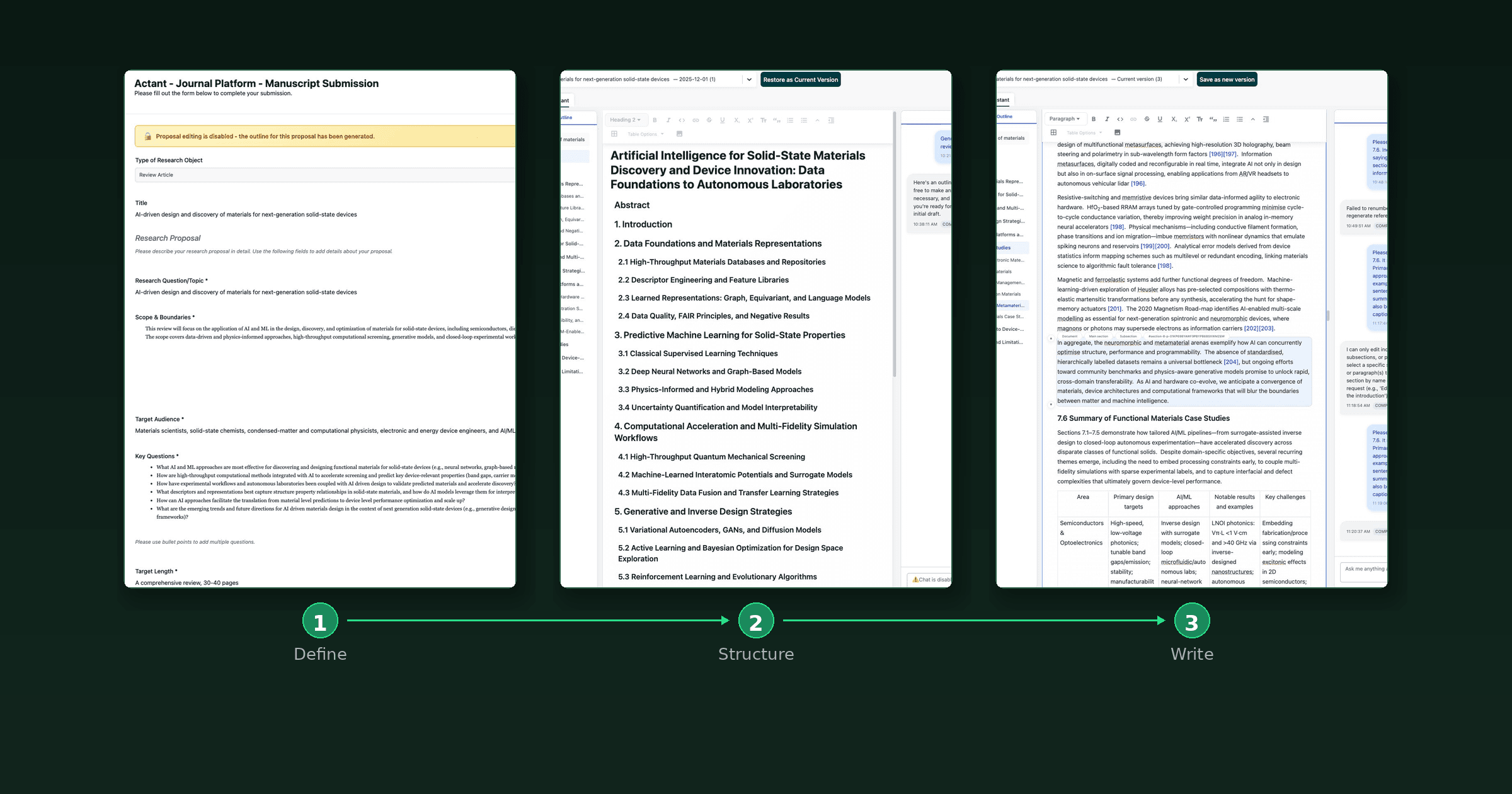
Welcome to the Actant alpha — and thank you for helping us test it. Actant is an AI-powered authoring assistant that helps researchers produce scholarly review articles. You provide a research proposal, the system finds relevant literature, generates a structured outline, and then writes a full draft with inline citations — all of which you can refine using a combination of manual editing and AI chat assistance.
This guide will walk you through the full workflow: from crafting your proposal to polishing your final draft. Since this is an alpha, we've also included a section on known limitations and how to send us feedback.
What to Expect
Before diving in, it's worth understanding the end-to-end pipeline so you know what's happening at each stage and how long things take.
The Pipeline at a Glance
| Stage | What happens | Approximate time | Your role |
|---|---|---|---|
| 1. Proposal | You fill out a structured form describing the review you want to write. | 5–15 min (your time) | Active |
| 2. Reference Finding | The ReferenceFinderAgent searches for relevant literature based on your proposal. | 5–10 min | Wait — status messages will appear in the UI |
| 3. Outline Generation | The OutlineAgent produces a section-by-section outline, with an estimated word count. | 2–4 min | Wait, then review |
| 4. Full-Text Processing | In the background, the system locates, downloads, vectorises, and stores full texts for your references. | 20–40 min | This runs in the background — you can work on your outline while it completes |
| 5. Outline Editing | You review and refine the outline — manually or via the Chat Assistant. | Your pace | Active |
| 6. Draft Writing | The ReviewWritingAgent writes the full manuscript, section by section. | 6–12 min | Wait — this only starts once full-text processing (step 4) has finished |
| 7. Draft Editing | You refine the draft — manually or via the Chat Assistant. | Your pace | Active |
Total wall-clock time from proposal to first draft: roughly 40 minutes to 1 hour, depending on topic breadth and the number of references found. Most of that time is the system working, not you.
You can close your browser tab at any time. All progress is saved server-side. If you close the tab while reference finding, full-text processing, or draft writing is running, nothing will be lost — just come back later and pick up where you left off.
Setting the Right Expectations
Actant produces a first draft, not a finished manuscript. Think of it as an expert research assistant that has read all the relevant literature and written up a comprehensive synthesis for you to refine. You should expect to:
- Review and potentially restructure sections
- Verify key claims and citations
- Add your own interpretive framing and expert perspective
- Polish the prose to your voice and standards
The AI-generated citations reference real papers, but the accuracy of specific claims attributed to those papers is something we are actively improving. Please treat citations as a strong starting point that merits verification, not as ground truth.
Part 1: Crafting a Good Proposal
The proposal is the single most important input to the entire pipeline. Everything downstream — the references found, the outline structure, the draft content — flows from what you provide here. Spending an extra 10 minutes on a thoughtful proposal will save you significant editing time later.
The Proposal Form
To start a new manuscript, click "+ New submission" from the dashboard, then click "Start with AI assistance." This will take you to the proposal form.
You'll see a form with the following fields. All fields marked with * are required.
Type of Research Object — Pre-set to "Journal Article." No action needed.
Title — The working title for your review. This will appear as the title of your generated manuscript. Aim for something specific and descriptive rather than broad. The system uses the title as a key signal for reference discovery and outline generation.
✅ "Graph Neural Networks for Molecular Property Prediction: Architectures, Benchmarks, and Clinical Translation"
❌ "AI in Drug Discovery"
Research Question/Topic * — The central focus of your review. This is one of the highest-impact fields. Be as specific as you can about what the review is about — the system uses this to scope its literature search and structure the outline. A vague topic will produce a vague, sprawling review; a focused topic will produce a targeted, coherent one.
✅ "How have graph neural network architectures been applied to molecular property prediction, and what are the key gaps in translating these models to clinical drug development pipelines?"
❌ "Artificial intelligence in personalized medicine"
Scope & Boundaries * — What's included and what's excluded. This field is your main lever for controlling breadth. Be explicit about:
- Temporal scope: e.g., "focusing on advances in the past 5 years" or "from 2015 to present"
- Domain boundaries: e.g., "limited to oncology applications" or "excluding veterinary medicine"
- Methodological scope: e.g., "covering only deep learning approaches, not classical statistical methods"
- What you're deliberately excluding: This is just as useful as what you're including. Telling the system "we are not covering X" helps it avoid wasting sections on tangential material.
Target Audience * — Who will read this review. This influences the level of technical detail and the amount of background explanation in the generated draft. "Computational chemists with ML experience" will produce different prose than "clinicians and healthcare policy makers."
Key Questions * — The specific questions the review should address. List these as bullet points. These have a direct influence on the outline structure — each key question will typically map to one or more sections. Think of them as the intellectual spine of the review.
Tips for strong key questions:
- Aim for 3–6 questions. Fewer can work for very short or tightly focused reviews. More than 6 will tend to produce longer articles with more sections — so if you're targeting a concise review, keep the list short.
- Make them specific enough to be answerable by surveying the literature. "What are the challenges?" is weaker than "What are the primary barriers to deploying federated learning in multi-site clinical trials?"
- Order them roughly in the sequence you'd want to address them. The outline generator uses this as a signal for narrative flow.
Target Length * — Your word count or page count target. Currently, the system does not use this field directly to control output length — draft length is primarily determined by the length of the outline, which is itself strongly influenced by the number of key questions you provide. More key questions → more sections → longer draft. If you want a shorter review, the most effective lever is to use fewer key questions and then trim the outline further during the editing stage (see Part 2). That said, please still fill this field out thoughtfully: we use it to evaluate how well the generated draft matches your expectations, and we plan to use it more directly to control length in future versions.
After You Submit
Once your proposal is submitted, two things happen in sequence:
- Reference finding begins (5–10 minutes). You'll see status messages indicating the system is working. You don't need to do anything during this stage.
- Once references are found, the outline is generated (2–4 minutes). At the same time, full-text processing begins in the background — this is the step where the system retrieves and processes the actual papers it found.
After the outline appears, the proposal becomes locked — you'll see a yellow banner at the top reading "Proposal editing is disabled — the outline for this proposal has been generated." This is expected. If you realise you need to substantially change your proposal, you'll need to start a new submission.
Part 2: Working with the Outline
Once the outline is generated, you'll be taken to the Authoring Assistant tab, which has two sub-tabs: Proposal (your locked proposal, for reference) and Outline (where you'll spend your time now).
What You'll See
The outline view has three areas:
- Left sidebar: A collapsible table of contents showing all sections and subsections. Use this for quick navigation.
- Central editor: The full outline rendered as a structured document with section headings. This is directly editable — you can click into it and type.
- Chat Assistant (right panel): An AI chat interface for making outline edits via natural language.
The outline will include an Abstract heading, Introduction, several topical body sections with subsections, and a Conclusion. (The References section is not shown in the outline — it will be generated automatically as part of the full draft.) Along with the outline, the Chat Assistant will report an estimated word count for the manuscript body (excluding abstract and references). This estimate is based on the number and depth of sections — it's a useful guide for deciding whether the outline is the right size.
How to Edit the Outline
You have two options, and you can freely mix them:
Manual editing — Click into the central editor and type. You can rename sections, reorder them, add new headings, or delete sections you don't want.
AI-assisted editing via the Chat Assistant — Type a request in the chat panel on the right. The OutlineEditorAgent can add, remove, rename, reorder, merge, or split sections on your behalf. The AI operates on the full outline at once, so you don't need to click on or select a specific section before making a request — just describe what you want changed. (This is different from draft editing later, where you must select a specific section or paragraph for the AI to act on.)
Example chat prompts that work well:
- "Merge sections 2.3 and 2.4 into a single section on network pharmacology"
- "Add a subsection under section 5 covering adversarial robustness of diagnostic models"
- "Remove the subsection on veterinary applications — that's out of scope"
- "Move section 8 (ethical considerations) to appear right after the introduction"
Important Constraints
Preserve the numbering scheme. The outline uses a numbered section/subsection format (1, 1.1, 1.2, 2, 2.1, etc.). When making manual edits, do not remove the numbers, switch to lettered sections (a, b, c), or otherwise break this numbering convention. AI-assisted edits will maintain the scheme automatically.
Don't add prose content to the outline. The outline should contain only section and subsection headings. Don't try to start writing the abstract, add introductory paragraphs, or fill in body text — that's what the draft generation step is for.
Avoid major scope changes. The reference-finding step runs only once, based on your original proposal. The hundreds of references it found are the corpus the system will draw on when writing the draft. If you add an entirely new section on a topic that wasn't reflected in your proposal, the system won't have relevant references to support it, and the resulting draft quality for that section will be poor. Outline edits should refine and reorganise the scope you already defined — not introduce new directions.
Tips for Getting the Outline Right
This is your most important editing opportunity. It's much easier to reshape the review at the outline stage than to restructure a 15,000-word draft. Invest time here.
- Check the estimated word count. If it's much higher than your target, consider removing or consolidating sections. If it's too low, consider adding depth. The most effective way to control draft length is by adjusting the outline.
- Look for overlap. The AI sometimes creates sections that cover similar ground from slightly different angles. Merging these will produce a tighter review.
- Verify the narrative arc. Do the sections flow logically? Does the review tell a story — from background and methods, through current applications, to challenges and future directions?
- Think about your key questions. Each one should be clearly addressed by at least one section. If a key question is orphaned, add a section for it.
Requesting the Full Draft
Once you're satisfied with the outline, type a message in the Chat Assistant asking for the draft to be written — something like "I'm happy with the outline. Please generate the full draft."
The system writes the entire draft at once. You cannot ask it to write only a single section (e.g., just the introduction). When you request the draft, it will generate all sections from Abstract through Conclusion, including a References section.
Important timing note: The draft can only be generated after the background full-text processing step has completed. If you finished editing your outline quickly (within 15–20 minutes of the outline appearing), the full-text processing may still be running. The system will wait for it to finish before beginning to write. You don't need to do anything — the draft will begin generating automatically once the prerequisites are met, but be aware there may be a wait here.
Part 3: Editing the Draft
Once the draft is written, the central editor will display the full manuscript — complete with formatted sections, inline citations (numbered references like [1], [2], etc.), and a reference list.
What You'll See
The draft view is similar to the outline view, but now the editor contains full prose. You'll still have:
- Left sidebar: Section navigation (now showing the full section tree of the written manuscript)
- Central editor: The manuscript text, fully editable
- Chat Assistant: AI-powered editing via the EditorAgent
The text will include inline numbered citations that correspond to entries in the References section at the bottom.
Manual Editing
The editor supports rich text editing — you can directly modify any text, fix wording, add or remove paragraphs, adjust formatting, and so on. Your manual changes are preserved through subsequent AI edits.
AI-Assisted Editing
The Chat Assistant at the draft stage is powered by the EditorAgent. Unlike outline editing (which operates on the full outline), draft editing requires you to select the content you want to edit before sending your request.
How selection works: In the central editor, click to select one main section, or one or more contiguous subsections or paragraphs. Selected content will be highlighted in light blue. This selection is sent to the EditorAgent as context for your request. If you don't make a valid selection, the agent will try to infer what you intended to edit based on your message — but if it can't, it will ask you to clarify.
Effective prompts (with appropriate content selected):
- "Revise this to put more emphasis on the limitations of current GNN architectures"
- "Add a paragraph at the end discussing recent FDA guidance on AI-based diagnostics"
- "This section is too long — shorten it by about a third"
- "Add a citation to [Author's paper title] in the paragraph about transfer learning"
- "Add a table comparing the performance metrics of the three architectures discussed here"
- "Add an equation for the cross-entropy loss function mentioned in this paragraph"
Less effective prompts:
- "Make it better" — Too vague; the agent won't know what to change.
- "Rewrite the whole thing" — The agent operates on individual sections/paragraphs, not the entire document at once.
The EditorAgent can also add equations and tables to the manuscript. If you prefer, you can manually add equations using LaTeX syntax directly in the editor as well.
Working with Citations
The draft includes inline numbered citations (e.g., [1], [5]) linked to a references section. A few things to keep in mind:
- Citations reference real papers sourced during the reference-finding stage. They are not fabricated.
- The accuracy of specific claims attributed to those citations is a work in progress. We recommend verifying that key claims are actually supported by the cited paper, particularly for claims that are central to your argument.
- You can ask the Chat Assistant to add citations to specific papers — reference them by title or author name, and the agent will attempt to find and insert the appropriate reference.
- If you notice a citation that seems misplaced or incorrect, you can flag it to the agent (e.g., "The citation [14] in section 4.1 doesn't seem to support the claim about drug interaction prediction — can you find a more appropriate reference?").
- Use the AI to remove citations. When the EditorAgent adds or removes citations, it automatically handles renumbering across the entire document and keeps the References section consistent. If you manually delete a citation (e.g., removing "[7]" from a sentence), the remaining numbering and the References section may become inconsistent. To be safe, ask the Chat Assistant to remove citations on your behalf.
Saving and Versioning
Every AI edit automatically creates a new version, visible in the version dropdown at the top of the page. Manual edits are not auto-versioned — if you're making extensive manual changes, it's a good idea to periodically click "Save as new version" to checkpoint your work. If you need to go back to an earlier state, use the version dropdown to navigate to a previous version and click "Restore as Current Version."
Known Limitations
This is an alpha release. Here's what to be aware of:
- Wait times can be significant. The full-text processing step (which must complete before draft generation begins) can take 20–40 minutes. We know this is long and are working on optimising it.
- Citation accuracy varies. The system finds and cites real papers, but the specific claims attributed to a citation may not always be accurately grounded in the source. We are actively developing validation tooling for this.
- The Chat Assistant operates on sections/paragraphs, not the whole document. You can't ask it to rewrite the entire manuscript in one go. Direct it to specific parts.
- Proposal editing is locked after the outline is generated. If you need to make major changes to your research direction, you'll need to start a new submission.
- Draft length is primarily controlled via the outline. If the generated draft is too long or too short, adjusting the outline (adding/removing/consolidating sections) and regenerating is more effective than asking the editor to shorten or expand the whole thing.
Giving Us Feedback
Your feedback during this alpha is genuinely valuable — it shapes what we build next. Here's how to reach us:
Email us at [email protected] — no issue is too small to report.
Things we'd especially love to hear about:
- Surprises: Anything where the system behaved differently than you expected
- Quality issues: Sections of the draft that felt off, citations that seemed wrong, outlines that didn't match your intent
- Friction points: Places where you weren't sure what to do next or what the system was doing
- Wait time experience: Whether the long-running steps were tolerable, and whether the status messages were clear enough
- What worked well: We want to know what to keep, not just what to fix
Thank you for being part of the Actant alpha. We're excited to see what you create with it.
Tags

Author
Michael Binger
Principal Data Scientist
Table of Contents
Share
Ready to Participate?
Your participation helps us explore new possibilities. Whether you're a researcher, tech enthusiast, or simply curious about innovation, we'd love to have you contribute to this initiative.